
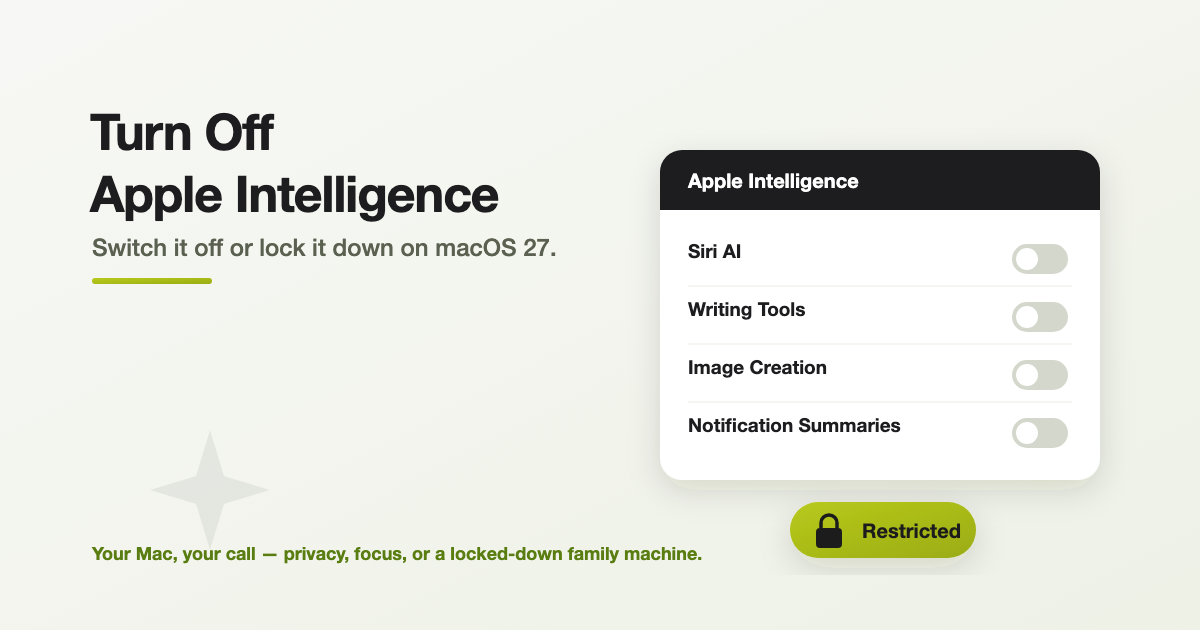
With macOS 27, Apple Intelligence is woven right through the Mac — summarising your notifications, rewriting your emails, generating images, and powering a smarter Siri. Plenty of people love it. But just as many would rather switch it off, or at least keep it on a tight leash: for privacy, to cut the distractions, to protect confidential work, or to lock it down on a child’s or a shared machine. The good news is that Apple gives you full control — and it’s quick once you know where to look. Here’s how.
Two ways to do it
There are really two levels, and it’s worth knowing which you need:
- Switch it off yourself — a few toggles in System Settings. Best when it’s your own Mac and you just don’t want the features.
- Lock it down with Screen Time — restricts the features so they can’t simply be turned back on. Best for kids, shared machines, or work Macs where it needs to stay off.
Part 1: Switch Apple Intelligence off yourself
On your own Mac it’s just a handful of toggles. Here’s where each one lives:
| Feature | How to turn it off |
|---|---|
| Siri AI (the main switch) | System Settings > Siri → Turn Off Siri, then confirm |
| Notification summaries | System Settings > Notifications > Summarize Notifications → turn off |
| Message summaries | Messages > Settings → turn off Summarize Messages |
| Email summaries | Mail > Settings > Viewing → turn off Summarize Message Previews |
| Smart Replies (Mail) | Mail > Settings > Composing → turn off Personalize Smart Replies |
| Voicemail suggestions | Phone > Settings > Calls → turn off Suggestions in Voicemail |
| Writing prompts (Journal) | Journal > Settings > General → turn off Get Writing Prompts |
Want to keep Siri but drop the AI? Turn Siri off, then turn it back on and choose Use Siri Classic — the traditional voice assistant, without the Apple Intelligence responses.
Part 2: Lock it down with Screen Time
If you need Apple Intelligence to stay off — on a child’s Mac, a shared family computer, or a work machine — Screen Time’s restrictions are the tool. They hide and disable the features, and can be protected with a passcode so they can’t just be switched back on.
- Open System Settings > Screen Time.
- Click Content & Privacy, then turn on Content & Privacy Restrictions.
- Click Intelligence & Siri. From here you can turn off Writing Tools, Image Creation (Image Playground / Genmoji), and Intelligence Extensions such as the ChatGPT integration.
- For Siri itself, you’ll see options to block Siri (choose Don’t Allow Siri), use Siri Classic without the AI, or allow Siri AI.
For a child’s Mac: open their profile under Family in System Settings and apply the same Content & Privacy Restrictions, so the settings are tied to their account and protected by your Screen Time passcode.
What Apple Intelligence does with your data
Before you decide what to switch off, it helps to know where your information actually goes. Apple’s design is genuinely more privacy-protective than most AI assistants — but macOS 27 changed a few things worth understanding. There are really three tiers:
- On your Mac (most of it). The bulk of Apple Intelligence runs entirely on-device. In macOS 27, Siri AI’s “personal context” can now search across your Calendar, Files, Mail, Messages, Notes and Photos using the on-device Spotlight index. That stays local — but it does mean an unlocked Mac is a bigger target, because the assistant can surface customer emails, attachments and notes on request.
- Apple’s Private Cloud Compute (for complex requests). Requests too big for your Mac go to Apple’s Private Cloud Compute, where Apple says only the data relevant to the request is processed and then discarded — not stored, not readable by Apple, with the server code open to independent inspection. New in macOS 27: Apple has extended this beyond its own data centres, running some of these workloads on Google and NVIDIA hardware (the models were built in collaboration with Google’s Gemini). Apple says the privacy architecture around them is still entirely its own. The honest caveat: you’re now trusting Apple’s attestation that the servers behave, rather than Apple’s physical control of them.
- Third-party extensions (where the promise ends). If you let Siri hand a question to ChatGPT, Gemini or Claude, that request leaves Apple’s protected boundary — and from there, that provider’s own data policy takes over. This is the one to watch.
What you can see and control
- See what’s actually leaving your Mac: System Settings > Privacy & Security > Apple Intelligence Report lists the cloud requests from the last 15 minutes or 7 days. Worth a periodic glance — though Apple has acknowledged the report has had gaps.
- Turn off extensions (ChatGPT and the like) so nothing goes to a third party — see Part 2 above.
- Limit Siri’s access to your data — app by app in Siri settings, or via the Screen Time restrictions above.
- HomeKit cameras: if Apple Intelligence is enabled in the Home app, HomeKit Secure Video is processed on-device and in Private Cloud Compute for descriptions and search. Turn that off if you’d rather camera footage didn’t go to the cloud.
The honest bottom line: Apple’s on-device and Private Cloud Compute design is still stronger than most, and there’s no indication Google can read your requests. But two things are now true — you can’t opt out of the on-device indexing, and some cloud processing runs on Google-operated hardware.
A note for businesses
For a Mac that handles confidential or regulated information — legal, medical, financial, client data — the sensible middle ground is clear: turn off third-party extensions (so nothing leaves Apple’s boundary), restrict Siri’s app access, and check the Apple Intelligence Report now and then. And if you manage a fleet of Macs, these settings can be enforced centrally through MDM rather than one machine at a time — something we’re happy to help you configure.
One thing turning it off won’t do: free up space
Here’s a catch worth knowing, especially if your Mac has a smaller drive. Apple Intelligence runs its AI models on the device, and those models take up roughly 20GB of storage. Turning the features off stops them running — but it does not remove the models or reclaim that space, and macOS 27 offers no built-in way to uncouple them. So switching Apple Intelligence off is about privacy, focus and control; it won’t win back disk space. If storage is tight on your Mac, that’s a separate conversation — and one we’re happy to have.
Good to know
- You don’t have to go all-or-nothing. You can leave Apple Intelligence on but switch off just the bits you dislike (say, notification summaries) — or keep Siri Classic for voice commands without the AI.
- On macOS 27, the newer Siri AI is still in beta, and availability of some features varies by country or region — so your exact options may look slightly different.
- Menu names shift between macOS versions; if a label doesn’t match, it’s usually just been renamed nearby.
Frequently asked questions
Open System Settings, click Siri in the sidebar, then click Turn Off Siri and confirm. To also stop AI notification summaries, go to System Settings > Notifications > Summarize Notifications and turn it off. Individual features like Mail and Messages summaries are switched off inside those apps’ settings.
Yes. Turn Siri off, then turn it back on and choose Use Siri Classic. You get the traditional Siri voice assistant without the Apple Intelligence responses.
Use Screen Time: System Settings > Screen Time > Content & Privacy, turn on Content & Privacy Restrictions, then open Intelligence & Siri and turn off Writing Tools, Image Creation and Intelligence Extensions. For a child’s account, do this from their profile under Family so it’s locked with your Screen Time passcode.
If your Mac handles confidential or regulated data, it’s worth switching off the summary features and the ChatGPT integration, which can send content off-device. On managed fleets this can be enforced via MDM. Geekworks can help you set a sensible policy.
No. The on-device AI models take up roughly 20GB, and switching the features off stops them running but doesn’t remove the models or reclaim the space — macOS 27 has no built-in way to uninstall them. If storage is tight, that’s a separate issue worth looking at.
Most of it stays on your Mac. Complex requests go to Apple’s Private Cloud Compute, which in macOS 27 now runs partly on Google and NVIDIA hardware — but Apple controls the privacy architecture and there’s no indication Google can read your requests. The real exposure is third-party extensions like ChatGPT: once a request goes there, that provider’s policy applies. Turn extensions off to keep everything within Apple’s boundary. You can see what leaves your Mac under System Settings > Privacy & Security > Apple Intelligence Report.
Want a hand setting it up?
Whether you want Apple Intelligence gone entirely, tuned to just the features you like, or locked down on the family or business Macs, the team at Geekworks in Coorparoo can get it sorted — and advise on the right balance for your situation. We’re Apple Authorised specialists; pop in or give us a call.