
Few things cause a sharper jolt of panic than staring at your Mac’s login screen and realising the password won’t come to you. The good news: on a modern Apple silicon Mac (M1, M2, M3, M4 and later) there are several legitimate ways back in. The honest news: which one works depends on a handful of facts about your machine — and in some cases, the only option left is to erase it. Here’s the straight story, with no false promises.
First, the honest truth about FileVault
This is the single biggest fork in the road. FileVault is Apple’s full-disk encryption, and on Apple silicon it’s deeply tied to the hardware. When it’s on, your password is cryptographically bound to the drive’s encryption key inside the Secure Enclave. In plain English: without the right credential, the data is mathematically locked and there is no backdoor — not for us, not for Apple, not for anyone.
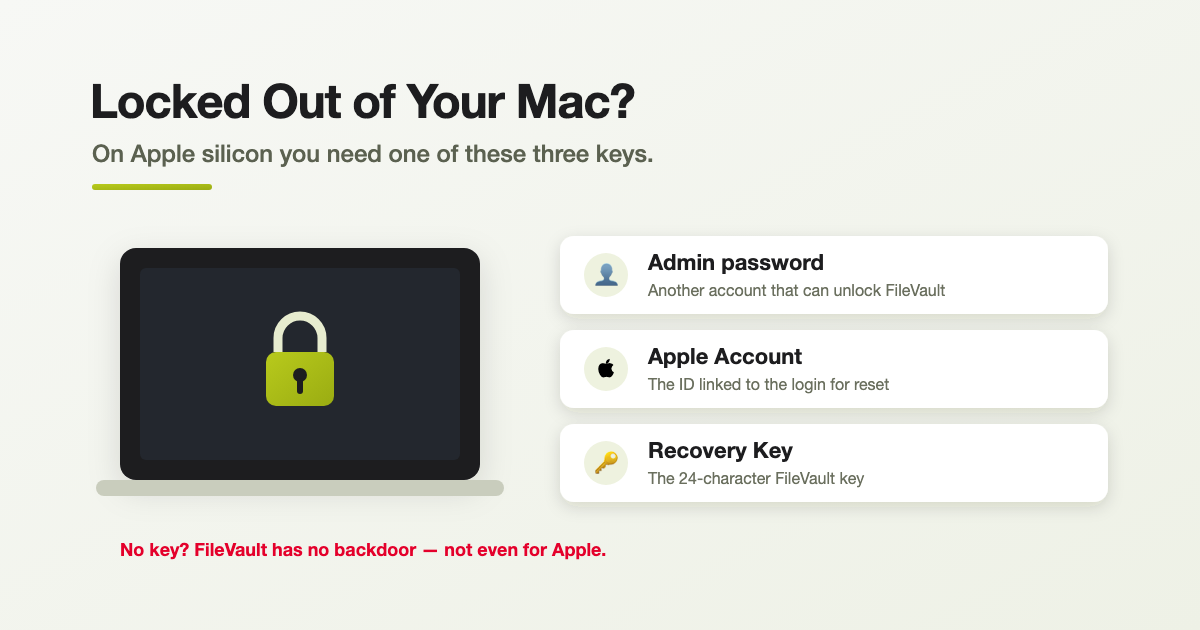
So with FileVault on, getting back to your data means having one of these:
- Another administrator password on the Mac that’s allowed to unlock FileVault, or
- The Apple Account that was linked to the login for password reset, or
- The FileVault Recovery Key — the 24-character code generated when FileVault was switched on.
If none of those exist, the data cannot be recovered. We’ll always tell you that honestly up front rather than let you hope otherwise.
A few questions before you touch anything
Work through these first — the answers decide the path:
- Is FileVault on? (The big one — see above.)
- Is there another admin account on the Mac whose password you do know?
- Was the account linked to an Apple Account for password reset? (Offered during setup or when FileVault is turned on.)
- Do you have the Recovery Key, or is it stored in iCloud or with your workplace?
- Is Find My / Activation Lock on, and whose Apple Account owns it? This matters a lot if it comes to erasing.
- Is it a work machine (managed by MDM)? If so, your IT team may hold the keys — literally. Talk to them first.
- Does the data matter? If there’s no credential path and the files are precious, stop and get advice before anything is erased — on Apple silicon, erased data is gone for good.
Ways back in, easiest first
1. Right at the login window
After about three wrong attempts, macOS often offers to help: if the account is linked to an Apple Account, it’ll let you reset the password with that; if FileVault is on and a Recovery Key exists, it’ll accept the key. You may also see a prompt to “Restart and show password reset options,” which boots straight into the Reset Password assistant. Always worth trying before anything more drastic.
2. From another admin account
If someone else has an administrator account on the Mac and knows their password, log in as them and go to System Settings > Users & Groups, select the locked user, and choose Reset Password. One catch: if FileVault is on and that admin isn’t enabled to unlock it, this won’t get you past the pre-boot screen — you’ll need one of the FileVault credentials instead.
3. Through Recovery (recoveryOS)
This is the proper toolkit for a forgotten password:
- Shut the Mac down. Then press and hold the power button until you see “Loading startup options.”
- Click Options, then Continue.
- The Recovery Assistant asks you to pick a user whose password you know. If you don’t know any, choose “Forgot all passwords?”
- From there it walks you through authenticating with your Apple Account or Recovery Key, then lets you set a new password.
- (For the technically inclined: Utilities > Terminal and the command
resetpasswordopens the same assistant.)
Worth knowing: Apple silicon Macs have no firmware password like the old Intel models did. Its job is handled by the startup security policy and the “volume owner” system instead — which is exactly why those FileVault credentials matter so much.
4. Erase — the genuine last resort
If no credential path exists, the only way to a usable Mac again is to erase it — from the Recovery Assistant’s Erase Mac option, or via a DFU restore using Apple Configurator on a second Mac. Please be clear-eyed about this: on Apple silicon, erasing is permanent — the data is unrecoverable. (A “revive,” which some people confuse with this, only reinstalls firmware; it won’t wipe your data or get you past the lock.)
The Activation Lock catch
After an erase, the Mac reactivates online — and if Activation Lock is on, it will demand the Apple Account of its owner before it can be set up again. This is a deliberate anti-theft feature, and it’s a good one. As an Apple Authorised Service Provider, we cannot remove Activation Lock for you without the owner. If you’re the genuine owner but can’t recall the account, the path is Apple’s official Activation Lock support request with your proof of purchase, or — for a work device — your organisation’s MDM bypass code. We’ll help you navigate it properly.
The bottom line
A forgotten Mac password is usually recoverable if you have one of the right credentials — an admin login, the linked Apple Account, or the Recovery Key. Without one, FileVault does exactly what it’s designed to do and keeps everyone out, including us. The worst outcome is someone panicking and erasing a Mac full of irreplaceable photos when a credential was sitting in a drawer the whole time.
So if you’re locked out — especially if the data matters — bring it in before you start erasing anything. We’ll work through the options with you honestly, take the safest path to your files, and never resort to dodgy workarounds. (And once you’re back in: this is a great moment to note down your Recovery Key and set up a solid backup.)
Frequently asked questions
Only if you have one of the required credentials: an administrator account that can unlock FileVault, the Apple Account linked for reset, or the FileVault Recovery Key. With FileVault on and none of those, the data is cryptographically locked and cannot be recovered by anyone, including Apple.
No. There’s no backdoor to FileVault, and as an Apple Authorised Service Provider we can’t remove Activation Lock without the verified owner. A genuine owner can use Apple’s Activation Lock support request with proof of purchase, or an MDM bypass code for a managed device.
Shut down, hold the power button until “Loading startup options” appears, choose Options then Continue, and in Recovery Assistant pick a user you know — or choose “Forgot all passwords?” to authenticate with your Apple Account or Recovery Key and set a new password.
No. On Apple silicon, erasing is permanent and the data is unrecoverable. If the files matter and you have no credential path, get advice before erasing — don’t erase first and hope.
Locked out? Let’s get you back in safely
If you’re staring at a Mac you can’t get into, bring it to Geekworks in Coorparoo. As Apple Authorised specialists we’ll assess your options honestly, protect your data wherever it’s possible, and guide you through Apple’s official channels where it isn’t. Pop in or give us a call — and if you can, bring any Apple Account details, admin passwords or Recovery Key you might have.