
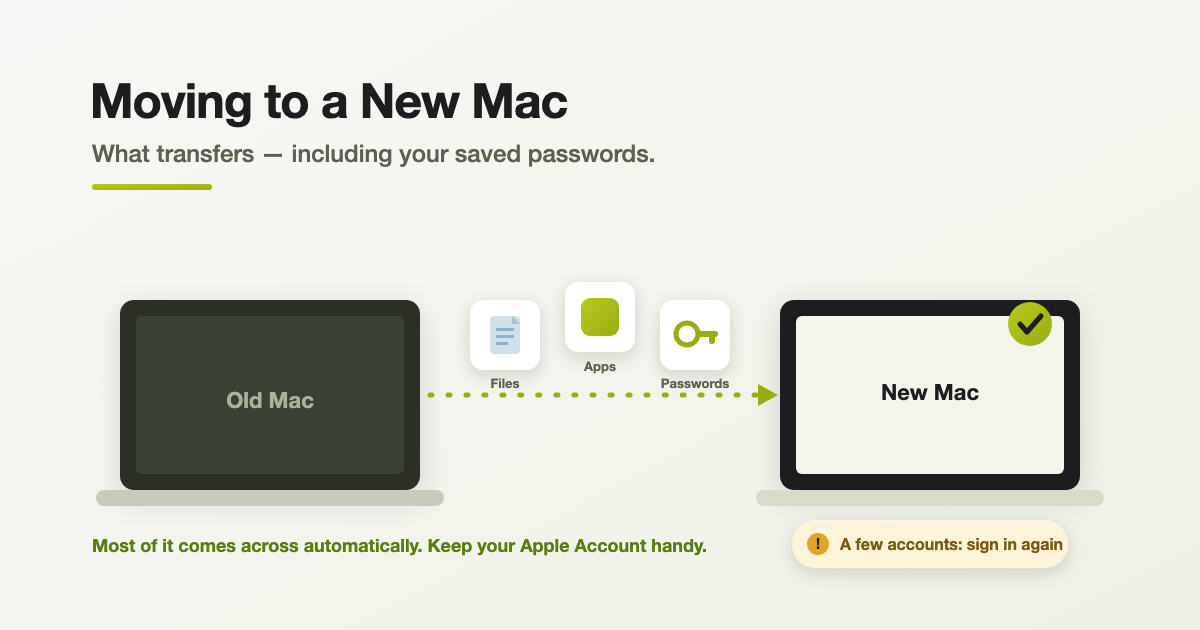
There’s a particular knot of worry that comes with a new Mac: am I going to lose everything — and will I be locked out of all my accounts because I can’t remember a single password? The good news is that Apple’s Migration Assistant does the heavy lifting for you, and — yes — it brings your saved passwords across too. A few things still need a fresh sign-in, though, so here’s exactly what moves automatically, what doesn’t, and what to have on hand before you start.
What comes across automatically
Migration Assistant transfers your documents, apps, user accounts and settings from your old Mac (or a Time Machine backup) to the new one. In practice that means:
- Your files — documents, photos, music, downloads, the lot.
- Your apps — the applications installed on the old Mac.
- Your user account(s) — so your desktop, folders and layout look just like before.
- Your settings and preferences — the way your Mac is set up.
- Your email — though you may need to re-enter the account details in Mail to get it flowing again.
Yes — your saved passwords come too
This is the part most people are anxious about, and it’s the reassuring bit. Your Mac stores passwords in something called the Keychain, and Migration Assistant carries your keychain across with your account. So the passwords your Mac remembered for you — website and app logins, Wi-Fi networks, certificates — generally land on the new Mac too.
On top of that, if you use iCloud Keychain — Apple’s system that syncs your passwords and passkeys across all your devices — those will appear as soon as you sign in to your Apple Account on the new Mac and switch iCloud Keychain on. (iCloud Keychain travels through your Apple Account rather than through the migration itself, which is why that sign-in matters.)
Between the two, the vast majority of your saved logins should be waiting for you — no frantic password resets required.
What you’ll still need to sign into again
Migration can’t do everything by magic. A handful of things are deliberately tied to you or to the specific machine, so they’ll ask you to re-authenticate:
- Your Apple Account / iCloud. You’ll sign back in to switch iCloud, Messages, FaceTime and App Store purchases back on, and to authorise the new Mac. Have your Apple Account password — and your two-factor device (usually your iPhone) — ready.
- Email accounts may need re-adding in Mail before messages start arriving again.
- Some apps will ask you to log in again — especially anything protected by two-factor authentication (banking, Microsoft 365, password managers, and so on).
- A few apps tie their licence to the machine and need re-activating with their key or your account.
- FileVault (disk encryption) is set per-Mac, so you’d switch it on again on the new one if you want it.
Have these on hand before you start
Ninety per cent of migration headaches come down to not having one password at the crucial moment. Before you begin, gather:
- Your old Mac’s login (admin) password.
- Your Apple Account email and password, plus the phone or device that receives your verification codes.
- Any licence keys for paid apps you’ll need to re-activate.
- If your old Mac used FileVault and you’re keeping it around, its Recovery Key (just in case).
A couple of things worth knowing
- Migration copies — it doesn’t wipe. Your old Mac keeps everything until you choose to erase it, so there’s no moment where your data only exists in one place. (That matters if you’re trading the old one in — erase it after you’ve confirmed the new Mac is complete.)
- You can migrate later, not just at setup. Migration Assistant lives in your Utilities folder, so you can pull your data across even after you’ve started using the new Mac — though doing it during first-time setup is the smoothest.
- Keep both Macs plugged in and give it time — a full migration can take a while over Wi-Fi; a cable is faster.
Frequently asked questions
Largely yes. Migration Assistant carries your Keychain across with your account, so saved website, app and Wi-Fi passwords come over. And once you sign in to your Apple Account and turn on iCloud Keychain, any passwords and passkeys synced there appear too.
Your documents, apps, user accounts and settings from another Mac or a Time Machine backup. You choose which categories to bring. Email comes across too, though you may need to re-enter the account in Mail.
Your Apple Account / iCloud (to re-enable iCloud, Messages, FaceTime and purchases), your email accounts in Mail, and some apps — particularly ones protected by two-factor authentication. A few apps tie their licence to the machine and need re-activating.
No. Migration copies your data to the new Mac and leaves the old one untouched. Only erase the old Mac once you’ve confirmed everything made it across — which is the safe order if you’re trading it in.
Want it done without the stress?
Setting up a new Mac and moving everything across is exactly the kind of job we do every week at Geekworks in Coorparoo. Bring both Macs in and we’ll migrate your files, apps and passwords, get you signed back in to everything, and make sure nothing’s left behind before you part with the old one. We’re Apple Authorised specialists — pop in or give us a call.