
Between two parents and a couple of kids, a family can rack up tens of thousands of photos — and they’re scattered across everyone’s phones. The shots from the school concert are on Mum’s iPhone, the holiday snaps are on Dad’s, and nobody has the full picture. The good news: Apple has built-in tools to pull the family’s photos together, give everyone room to store them, and make sure the memories aren’t trapped on one device. Here’s how to use iCloud Family Sharing for your photos — and which feature does what.
Two different jobs (and two different features)
People lump this all together as “family sharing,” but there are really two separate jobs, and Apple solves them with different tools:
- Giving everyone room to store their photos — that’s Family Sharing + a shared iCloud+ plan.
- Actually pooling the photos together so everyone sees them — that’s the iCloud Shared Photo Library (or, more simply, Shared Albums).
Sharing a storage plan does not share your photos, and sharing photos doesn’t require sharing a plan. Keep those two ideas separate and the rest makes sense.
Part 1: Share one iCloud+ plan so everyone has room
With Family Sharing, up to six people can share a single iCloud+ storage plan. Instead of everyone paying for their own 50GB, the family buys one 200GB or 2TB plan and everyone draws from it. It’s far cheaper, and it means nobody’s phone stops backing up photos because they ran out of space.
Important: sharing the plan keeps each person’s photo library completely private and separate. Your teenager isn’t going to see your photos just because you share storage — they only share the space, not the pictures. (Purchases, subscriptions and more can be shared too, but that’s a topic for another day.)
To set it up: on the family organiser’s iPhone, open Settings > [your name] > Family Sharing, add your family members, then turn on iCloud+ sharing. Everyone keeps their own Apple Account and their own private library.
Part 2: The iCloud Shared Photo Library — the family album that builds itself
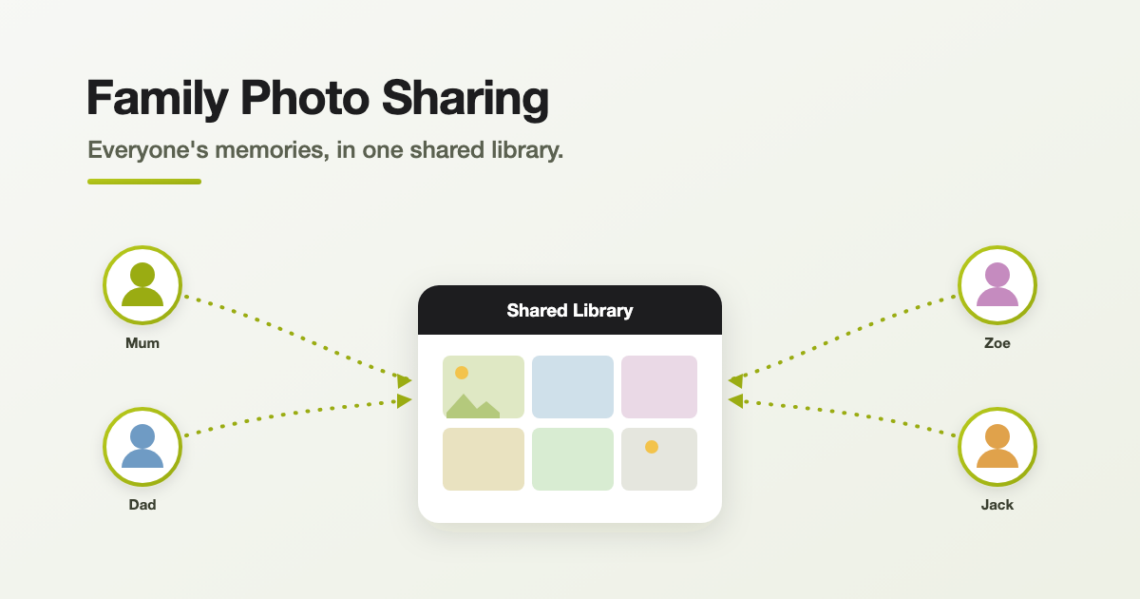
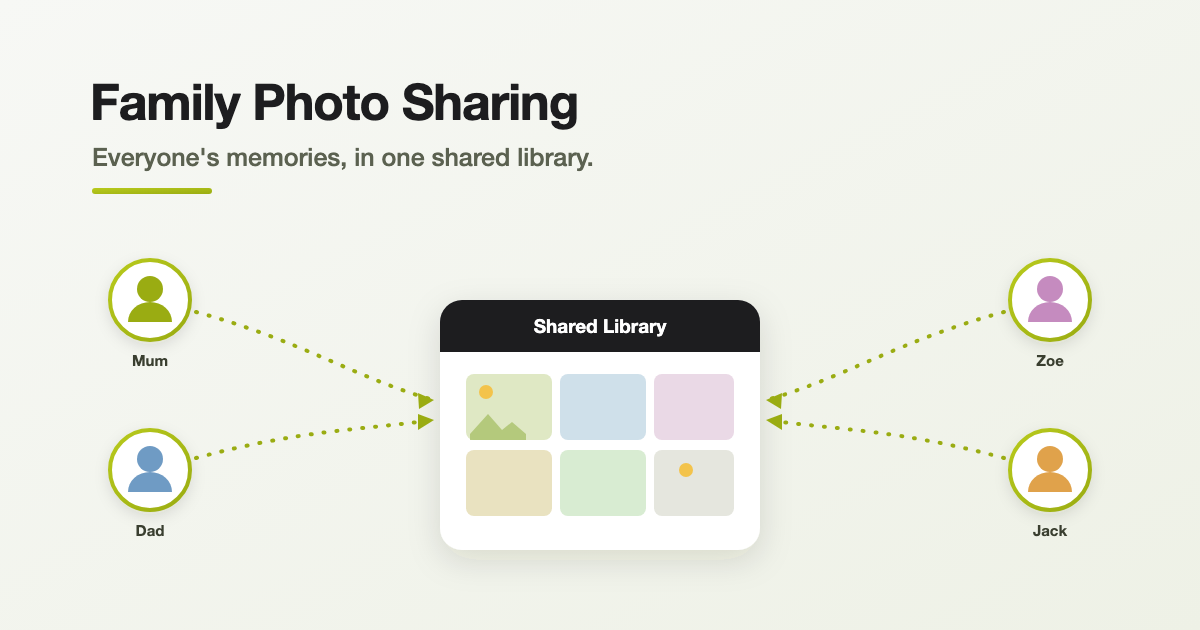
This is the big one. An iCloud Shared Photo Library is a second library that sits alongside your personal one, and up to six people all contribute to it. Everyone can add, edit, favourite, caption and delete photos in the shared library — and everyone sees the same collection, kept perfectly in sync.
The clever part is how photos get in there. You can move them across manually, but you can also let it happen automatically:
- By date — share everything from a chosen start date onwards (great for “everything since the kids were born”).
- By who’s in the photo — automatically share any photo that includes certain people.
- Straight from the camera — when you’re near other members, a toggle in the Camera app lets new shots drop into the shared library as you take them.
In the Photos and Camera apps you simply tap to switch between your Personal and Shared library, so it’s always clear where a photo is going.
The things to know before you dive in
- One person provides the storage. The person who creates the shared library uses their iCloud storage for all of it — for everyone else it doesn’t count against their space. So the creator usually wants a roomy plan (this is where a shared 2TB iCloud+ plan earns its keep).
- Everyone has equal power — including delete. Anyone in the library can remove a photo, and it disappears for everyone. It’s brilliant for a trusting family, but it’s not the tool for photos you can’t afford to lose to an accidental tap.
- It needs modern devices: iOS 16, iPadOS 16 or macOS 13 (Ventura) or later, with iCloud Photos switched on.
- It’s not tied to Family Sharing. You can include up to five other people whether or not they’re in your Family Sharing group — even a grandparent on their own account.
Part 3: Shared Albums — the lighter option
Not everyone wants a whole shared library. If you just want to share a specific set of photos — the wedding, the birthday, the trip — a Shared Album is simpler. You create an album, invite people, and they can view, like, comment and add their own shots.
Shared Albums scale much wider — you can invite up to 100 people — and you can even share them via a link that works in a web browser, so relatives without an iPhone can still see the photos. Think of it as the gentle, event-by-event way to share, versus the Shared Photo Library’s always-on, everything-together approach.
Which should you use?
- Want the whole household’s day-to-day photos in one growing collection? Use the iCloud Shared Photo Library.
- Just want to share one event with a wider circle? Use a Shared Album.
- Just want everyone to have enough storage? Share an iCloud+ plan through Family Sharing — and you can happily do this alongside either of the above.
And remember: none of this replaces a proper backup. A shared library is wonderful for access, but because deletions sync to everyone, it’s not a safety net. If you’d like the full picture on protecting your photos, see our guide on iCloud Photos vs an external drive.
How to start a Shared Photo Library
- On your iPhone, open Settings > Apps > Photos (or Settings > Photos on older versions).
- Tap Shared Library and follow the prompts.
- Invite up to five people, then choose how photos are added — move a batch across now, share from a date, or by who’s in them.
- In Photos and Camera, use the toggle to switch between your Personal and Shared library any time.
Frequently asked questions
No. Sharing an iCloud+ plan through Family Sharing only shares the storage space — each person’s photo library stays completely private. To actually share photos, you use an iCloud Shared Photo Library or a Shared Album.
Up to six in total — you plus five others. They need an Apple device on iOS 16, iPadOS 16 or macOS 13 (or later) with iCloud Photos turned on, and they don’t have to be in your Family Sharing group.
The person who creates the shared library provides the storage for everything in it. For everyone else, the shared photos don’t count against their own iCloud storage — so the creator usually wants a generous plan, like a shared 2TB.
Everyone in a Shared Photo Library has equal rights, so a deletion removes the photo for everyone (it sits in Recently Deleted for 30 days first). That’s why it’s not a substitute for a proper backup of photos you can’t afford to lose.
A Shared Photo Library is an always-on second library for up to six people that pools your everyday photos together. A Shared Album is a lighter way to share a specific set of photos with a wider group — up to 100 people — and can even be viewed via a web link.
Want a hand getting it set up?
Getting the family’s photos organised — the right storage plan, a Shared Photo Library that fills itself, and a real backup behind it all — is exactly the kind of thing we love helping with. Pop in to Geekworks in Coorparoo and we’ll get it sorted on your devices, no jargon. We’re Apple Authorised specialists and happy to help.